Can't create FSE template to display single items

Hi, i’m back to query some help :smiley:

i use a FSE theme that do not support child theme.

i’m trying to make FSE/gutenberg template page to display single items with blocks but that doesn’t work as i want.

Some block can synchronize with current tainacan item but other can’t.

If i use post content default wordpress block all the metadas are displayed and i’m not able to hide or move some of them.

Is it even possible to have customized template in my config ?

Thank you for your help i’m a little bit lost.

King regards.

Hey @e.lito it is nice to know that someone is playing with FSE themes and Tainacan.

I must say our support on that has been weak, we did some progress earlier in the days when we were developing Tainá, but since then we could never give proper attention to it.

Now that you’ve pointed that out, I just noticed that we have a bug in the way our blocks would communicate with FSE template logic. It was caused by some changes in the way the site editor loads the template in recent WordPress versions. I’m opening an issue to deal with it as soon as I can :sweat:.

But let me explain how things should work. In theory, you would:

  1. Go to “Site Editor”;
  2. Go to “Templates”;
  3. On the top right corner, go to “Add template”;
  4. From the modal, select “Single item: Your collection name”;
  5. In the next step of the modal, select “For all the items”;
  6. This would open the site template editor. From there you can build things the way you want in terms of header and footers.
  7. Remove the “Post content” block;
  8. Insert Tainacan-related blocks like “Tainacan Item Metadata Sections” and “Tainacan Item gallery”.
  9. That should be enough to have basic item elements in the template.

The issue today is that in step 8 the Metadata section block is not detecting that it is in a template editing flow instead of a post editing flow. So it asks you to select a collection, which should be detected automatically based on the current template.

I’ll let you know when I have news on that. Still I must say that there might be things that even with today blocks you may need code to do properly (for example, a Related Items list). We’re still working on to improve this type of support but it gets really complex due to the diversity of content that collection items may achieve (think of a single post type content versus a list of metadata sections, item gallery, multiple metadata types, etc…)

Thank’s for your reply.

The steps you describe are excatly what i have done.

Do you think that if Metadata section block detecting that it is in a template editing flow it would be possible to re-organise metadata order and construct precisly the template ?
Will the blocks be dynamics ?

How can i do in waiting time is there any solution ? custom plugin, custom php template ?

Here is what i’m trying to do

  • left column with preview then some metadata
  • right column with title H1 (but i don’t want metadata section title) then description and below i want the media galerie or document download link

Very thank you for reactivity

PS : Just a fact interesting, it’s Chad GPT who had recommended Tainakan, that I’ve never found, because I don’t talk not Portuguese, and that I do my research from the France.

Hey @e.lito can you give a try on this development version? I think I found the bug:

When trying new versions like this, don’t forget to reload your page clearing your browser cache (CTRL + SHIFT + R).

Visit the side editor and try to insert the “Item metadata sections” block again. Instead of asking you to select a collection it should only load placeholders for the item metadata.

That is a great question. Answering it is a bit tricky which is why I’m not entirely sold in our strategy for FSE themes yet. But let’s try:

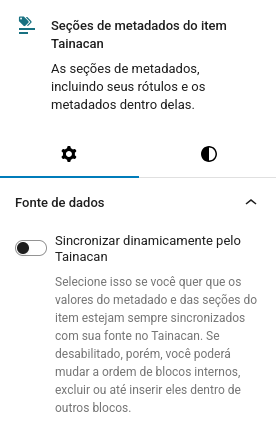
If you insert the Item Metadata Sections block, you’ll notice it has a hierarchy of child blocks:

The Item Metadata Sections block is responsible for loading an array of Item Metadata Sections block. Each Item Metadata Section is responsible for loading the Metadata Section Label block and a Item Metadata block. That Item Metadata block is responsible for loading an array of Item metadatum block, which finally loads the label and value for that metadatum.

If you select each of this parent blocks, you’ll see that they have an option for data source sync.

. If you check that, you’re leaving the parent block responsible for fetching the content from Tainacan. If you disable that, you’ll be able to make changes to it’s children, like re-ordering and deleting elements.

So if you insert a Item Metadata Sections block and check that, you won’t be able to change much besides container size, colors, etc. On the other hand, if in the future you create or reorder your metadata sections and any of it’s inner content, things will be there.

But if you want to build your own layout, say using a sidebar like that, you could instead insert manually your own Item Metadata Sections blocks, selecting the desired section during the block setup. You’ll be loosing the dynamic aspect of the wrapper (future metadata sections won’t be inserted automatically) but you’ll be able to move them as you wish. The inner content will still be sync, as long as that option is checked.

BUT let’s say you want to remove something inside that section, such as the case of the sidebar. For that you could uncheck (disable) the sync option of that single Item Metadata Section block and then remove the Metadata Section Label block. By doing that, you would be loosing the automatic metadata sorting and insertion/deletion.

There is another path to do what I described in the paragraph above. Here you would want not to insert the Item Metadata Section block but your own array of Item metadatum blocks. You would manually setup each metadatum. Again, this means you loosing their automatic sorting and auto insertion/deletion if in the future you ever change that in your collection settings. What matters is that the item metadatum label and values remain dynamic.

So in the end I think you can do a combination of strategies. Does it makes sense?

That is really nice to hear! I’ve seen very rare cases of users who speak french. You might be interested on hearing about the translation status of the plugin:

Right now French is less then 25% so there is a lot of work to do.

Really thank you for this dev version !!!

It works ! And it works as expected. I perfectly understand the “synchronized mode” option and after some test i can confirm that it works as described.

In synchronized mode changing metadata order in Tainacan admin make it change in template to.

If the block is not synchronized, every metadatum block is dynamic now (this is so great), but of course changes in admin are not replicated.

For me it is a good way to do things.

Now let me ask for some little improvements
When i insert “Title block” (for example) there is 2 problems for me :

  • It would be great to have an hide/show label option
  • actually you can choose Heading level but it is apply to label for me or for seo purpose it would be more logical that it would be applied to the data.

There’s something I find a bit strange, it’s just a thinking monolog.
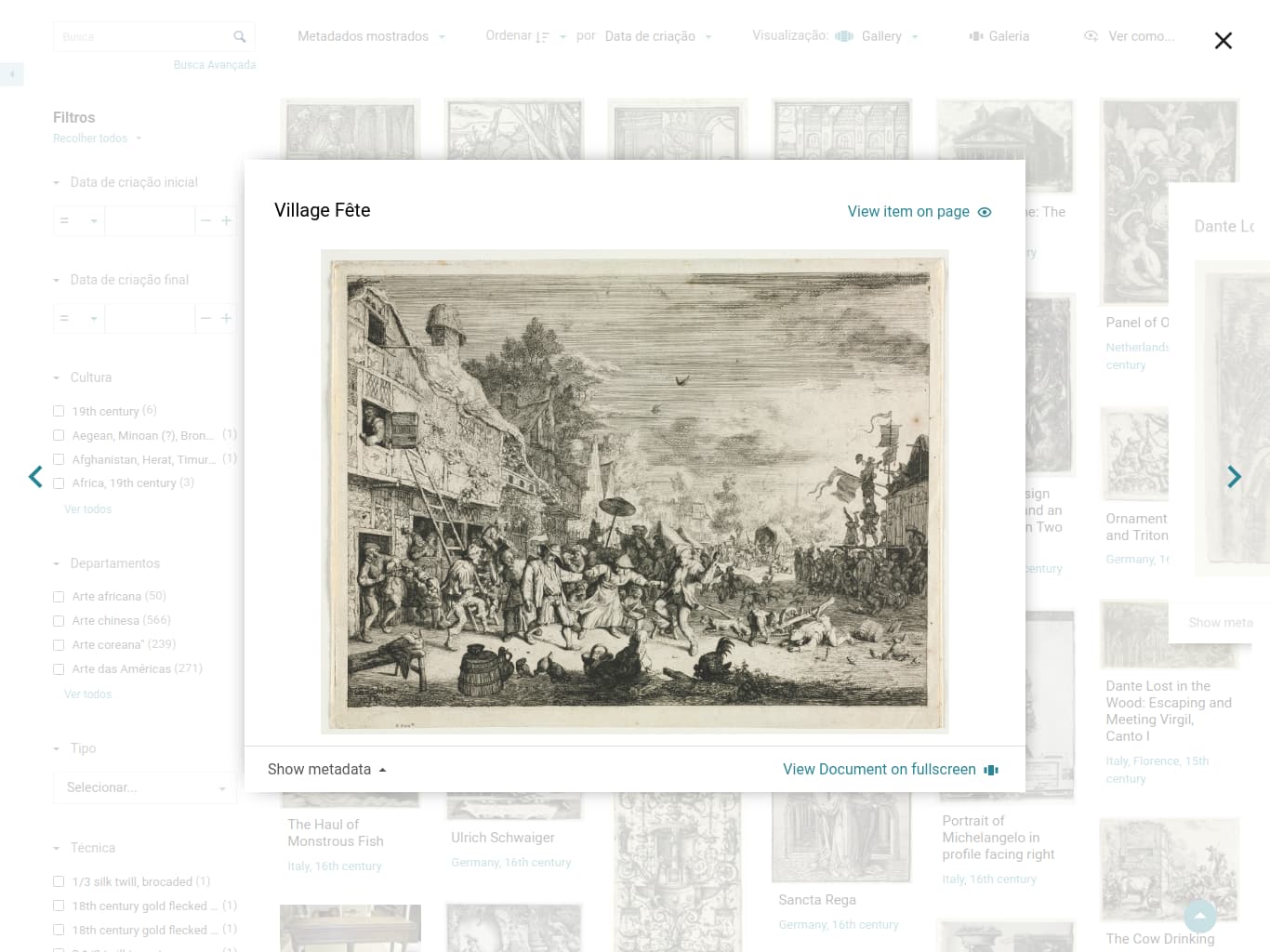
Actually i use “Tainacan faceted search” block as an entrance to the bibliography section of the website (here). This block is very practical but when you click on an item your redirected to the theme template (here) page so visually you change of univers. It would be great to have an option to open item in modal popup.
Another thing is, if your are in item page with my custom template for example, you click on a term you are redirected to wordpress theme page template (here). but maybe it would be great to be redirected to the faceted search page and pass term search in parameters.

Maybe i haven’t well understand all the subtilities of tainacan, feel free to say me.

French translation
Yes for the moment i have translated a big par with poedit automatic translation but it is not perfect at all. When you talk of “a lot of work to do”, it can’t say, the number of strings to translate is monumental !

I will try to do a better work on this to update Glotpress version.
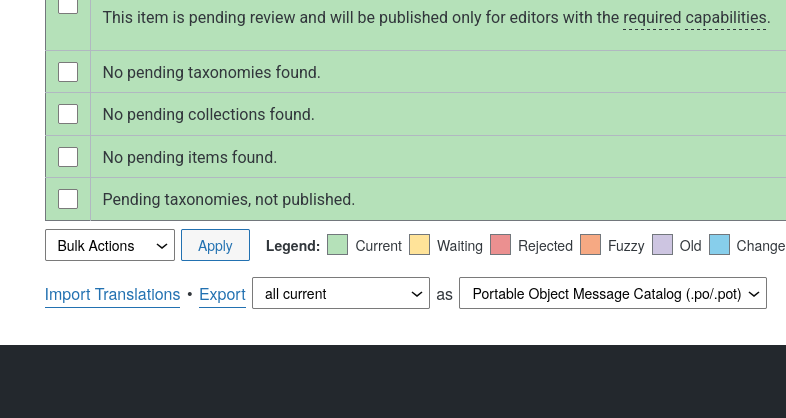
Is it possible to import a file directly instead of working online ?

Finally
Thank you very much for your job and your reactivity.
I will use Tainacan in 3 projects for environnemental organisation in the next months.

King regards, Aurélien.

Glad thinks are working as expected :slight_smile:

That’s fair, it is a simple option to create and I’ll certainly put in my todo soon. For now what you can do is target the wp-block-tainacan-item-metadatum__metadatum-label class in CSS to hide it. You could use the “Advanced” section in the wrapper block that makes sense for you and add a class like ‘hidden-labels’ there.

.hidden-labels .wp-block-tainacan-item-metadatum__metadatum-label {
    display: none;
}

If you don’t know where to add this CSS rule, you could go to your Site Editor → “Design” → “Styles” → “Blocks” and from there select a parent block like the Item Metadata Sections.

This is what i have done :slight_smile:

Thank you

1 curtida

Uhmm I don’t agree with that. I actually just did some research (a.k.a. GPT :sweat_smile:) to make sure I was understanding that right but heading tags should really just be used to indicate what the following content is about and thus how it hierarchically positions in contrast to the rest of the page content. It would also lead to all sort of styling issues like having to represent compound and relationship values inside a tag that is usually inline.
Think like this: if the H1 was to indicate the main content we would wrap the whole page inside it instead of the page title :melting_face:

Your website is turning our really cool! Let us know when it’s ready so we can put in out Use cases :slight_smile:

So yes, by default the Items List view modes link to the Item page.

We do have a “View in page” view mode, the “Slideshow/fullscreen” one, but that puts you in a sort of presentation mode, it is not what you are expecting.

What you are expecting is the kind of feature we never baked in the plugin because it would require a ton of extra features and design decisions that we find hard to abstract (keeping an items list with faceted search and filters in a design-agnostic fashion is already hard). Luckily you can achieve that registering your own View Mode. We have a documentation here about it:

As mentioned there, we did created a plugin that adds some demonstration View Modes:

One of them has a behaviour close to what you are looking for:

You could set it as your collection default view mode. However, I’m not a big fan of this path because that plugin is not that well polished and maintained (for example, it adds extra css and js to your page even if you are not using all view modes).

If you have programming skills to create one your own, that could be a way to go. I know in the future would be nice to create this view modes in the same way that you would create a post loop block, but we’re far from there, for sure.

What you are expecting there makes all sense and it is actually the behavior that Classic themes that have compability with Tainacan (such as Tainacan Interface or Blocksy with the integration plugin do). We call that page the Items Taxonomy Term Page.

If you were in a classic theme, you could even create a /tainacan/archive-taxonomy file and from there call the function that renders the faceted search block as described here.

So obviously you would expect to be able to do that via blocks, as you can do with the Collection Items Page (which is your collection archive template). But for some reason, when creating a new template that modal does not offer you Archive options for your Tainacan Taxonomies. I’m not entirelly sure why. I do see that WordPress allows doing it for its default taxonomies (Categories and Tags):

But Tainacan Taxonomies are WordPress taxonomies behind the scenes. So I must do some research to make sure if this is still a Site Editor limitation or if there is some code that we must change to allow their archive template to be customizable there. Then you would be able to use the same Faceted Search block.

All that said in our FSE Tainá theme we did some hacking to allow define via code a template for that Archive. I’ll show you briefly where things are in the code to give you hint but feel free to ask more details if you want to dig that way:

  • This file does the job that a classic theme would do. You can see it sadly need to build the entire HTML in code but we can still call blocks to at least have them customizable via patterns as we did for the header and footer. We’re also calling some information to build a custom header, using the Taxonomy Term featured image and description.

Still I don’t like that path, it is something that we must improve once we understand better the way FSE templating works.

1 curtida

Don’t worry, we know translation can be challenging! We do our own from English to Portuguese every release. As our plugin introduces a lot of concepts and contextual help information and settings, it certainly is a complicated mission.

Yes you can import translations, you will find this option at the bottom of the page when you are logged in:

1 curtida

Yes you are right and i agree with you for all metadata excepted for core_title.

Actually the < h1 > is around the label Title witch is not significant for people and SEO. If this Tainacan item page is displayed in google search results the blue link will be the label “Title” not the data. Hiding label in css is OK for people but not for SEO because in this case there is no H1 title in page and Search engines don’t like that.

Oh ok, I got it! In classic themes we usually offer an option to disable the Core Title from the list because that Job is usually done by the page title itself (you can use the WordPress page tiitle block for that). So in that case I wouldn’t use the Item Metadatum block exclusively for that guy. But it is again a feature that would be nice to have in the parent block, I agree.

1 curtida

Awesome reactivity thank you very much for ALL informations link, tips, advices !

1 curtida

An update on the Taxonomy Term template issue… I noticed that a possible workaround is to go to your “Tainacan Admin” → “Taxonomies” → Select the taxonomy and edit it → Add “post” to the enabled post types options. This will make you taxonomy be usable for classifying WordPress posts as well which seems to be the current criteria for the Site Editor to enable creating a custom template for the taxonomy archive.

Keep in mind that this will also offer your Taxonomy terms as options in the Post Editor when creating posts. But mixing things here wouldn’t be a good thing… Your post won’t appear in the faceted search and it can potentially mess up with out facets total calculations.

I should also mention that if you go to your metadata settings and select that taxonomy metadata you have one useful option: “Do not display term as link” - in case you want to avoid that link to that template.

Este tópico foi fechado automaticamente 5 dias depois da última resposta. Novas respostas não são mais permitidas.